
Content Outline
Ballot Selection
Prior to Opening a Round
- BM will confirm that ballots are ready from Tab. Group toggles for the round will appear.
- BM will watch the number of community judges registered for an upcoming round on the Ballot Admin Report to monitor when to pause paneling parent judges. This will ensure there are ballots for community judges when they arrive.
When to Open Balloting:
- Preliminary Rounds:
- 1 hr 15-30 minutes before a Round
- Paneling for Elimination Rounds:
- Should ONLY begin AFTER Break Announcements per the BAL’s instructions.
Groups for Balloting
- All ballots are divided into 3 Groups.
|
Group |
Who will See Ballots |
|
1 |
The following judges pre-registered for the round:
|
|
2 |
The following judges pre-registered for the round:
|
|
3 |
|
How to Ballot a Round
- From the NCFCA’s Staff Competition Screen the BM will look for the desired Round and toggle Group 1, 2, and/or 3. You must Open to Groups 1 and 2 prior to opening to Group 3.
- Note: LD flight A and TP are typically opened at the same time (unless instructed otherwise).
- NM will immediately send a Text and Notification to parents that ballot selection is open. Remember, NM will send a notification to CJ’s no earlier than their arrival time of 45 min.
Monitor Ballot Selection
- BM will monitor the Ballot Admin Report for activity during the paneling process.
- Observe activity to ensure parents are taking ballots.
- Provide a count of how many judges are needed to the BAL.
- Close Group 3 and possibly Group 2, as directed by the BAL, if ballots are being filled too quickly to ensure there are enough ballots for Community Judges.
- NM should send a notification to parents if groups are temporarily closed for community judges.
- The BAL will assess as you panel community judges, directing when to reopen groups and send notifications.
- Note: If someone in Group 1 cannot see a ballot, untoggle all groups and then retoggle for group 1. (This would occur if a Community judge was added to the system after the group was released.).
Opening for Community Judge Arrival - 45 min. before round
- BM ensures Group 1 is toggled on. This should still be toggled on.
- NM sends Text & Notification to community judges that ballot selection is open, using Notification Script template for messaging.
- Select Group: Registered Community/Alumni Judges By Round
- Select Schedule: the corresponding round (note that LD and TP will need to be sent separately as they are two different events and will have their own round)
- Message: add the message using the Notification Script template
- NM will monitor the Judge Management Report on the dashboard and communicate with the Welcome team and Judge Support Team as needed.
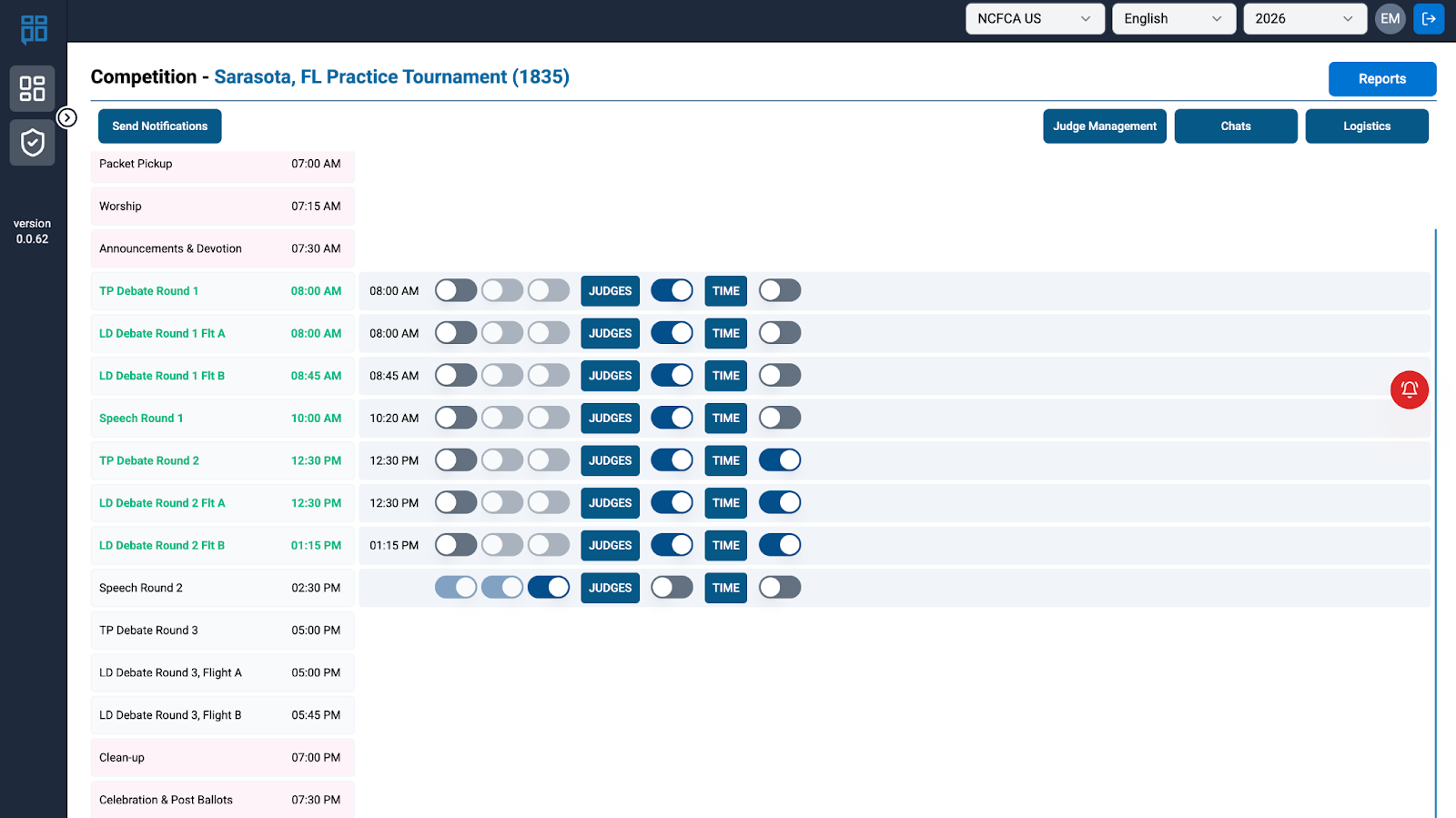
The Judge Management Tab can be found on the top right side of the homescreen.
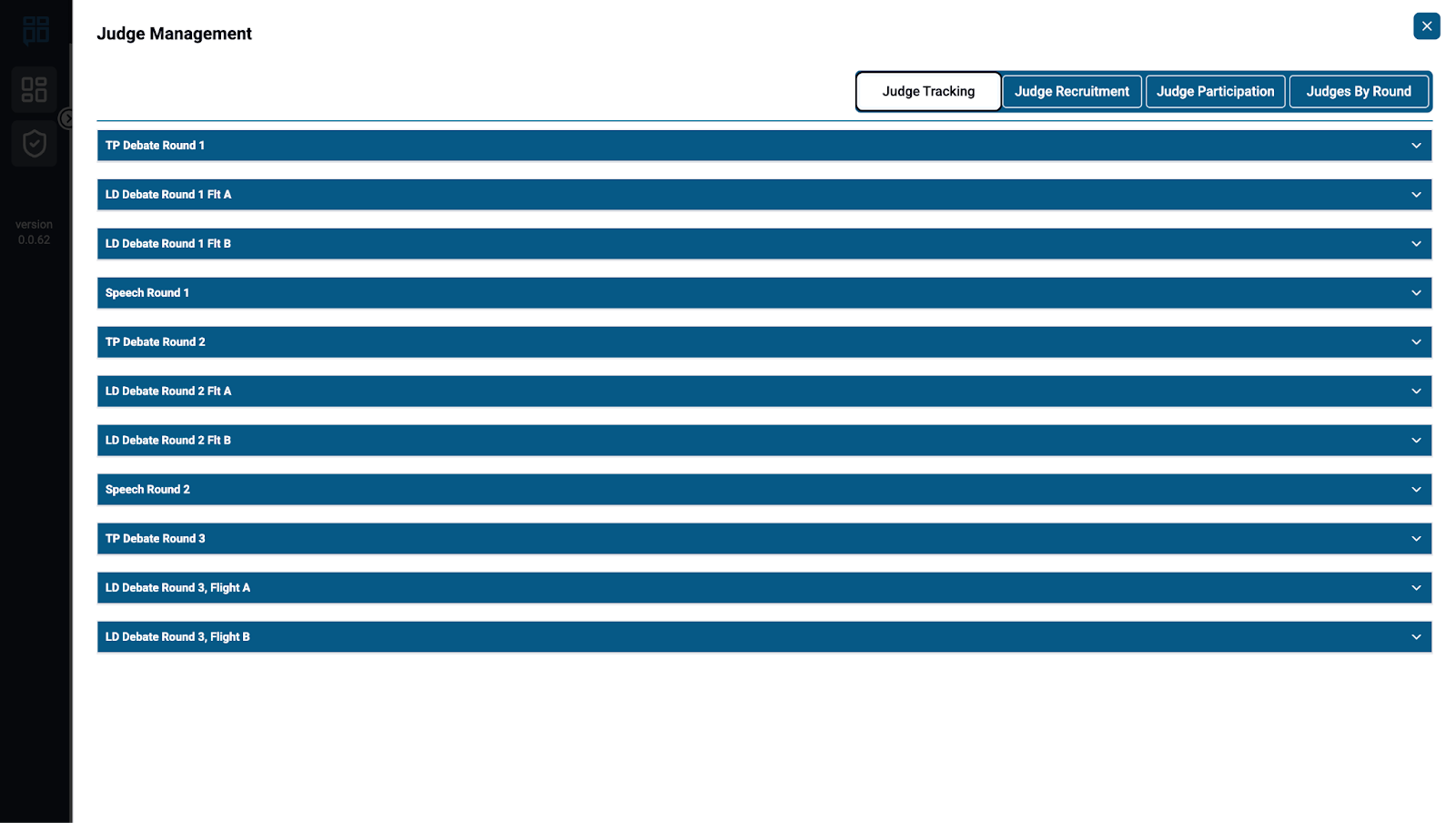
- Select the corresponding round(s.)\
 .
.
- Observe as CJ’s arrive and check that they are getting on ballots.
- Add comments next to judges for JST as needed. If you need a quick reply, you may contact the JS Lead./team directly.
- Communicate with your BA team accordingly.
- BM will continue to monitor the Ballot Admin Report
- Observe CJ’s who enter ballot selection to ensure they obtain a ballot.
- Work through NM as needed to find out how BA may assist community judges.
Obtaining Enough Ballots for a Round to Begin
- BM will reopen (if closed) Group 2 and Group 3 to fill any remaining ballots about 30 minutes before the round starts.
- NM sends Text & Notification to parents that ballot selection is re-open.
- NM should work with JST on any remaining CJ’s that have not taken a ballot yet.
- If needed BM may manually add a judge.
- BAL may direct NM to send Text & Notification to parents as needed concerning the # of ballots available.
- Do not send these very frequently as there is a cost associated each time we send texts out.
- At the direction of the BAL, NM & BM may reach out via text or phone call to request designated adults not on ballots to ask them to take a ballot.
- BAL may need to go to Judge Hospitality to check on Community Judges, help parents get on ballots and be available for any last minute changes needed.
- Ballot selection will ideally be filled no later than 15-20 minutes before the round starts.
Removing a Judge
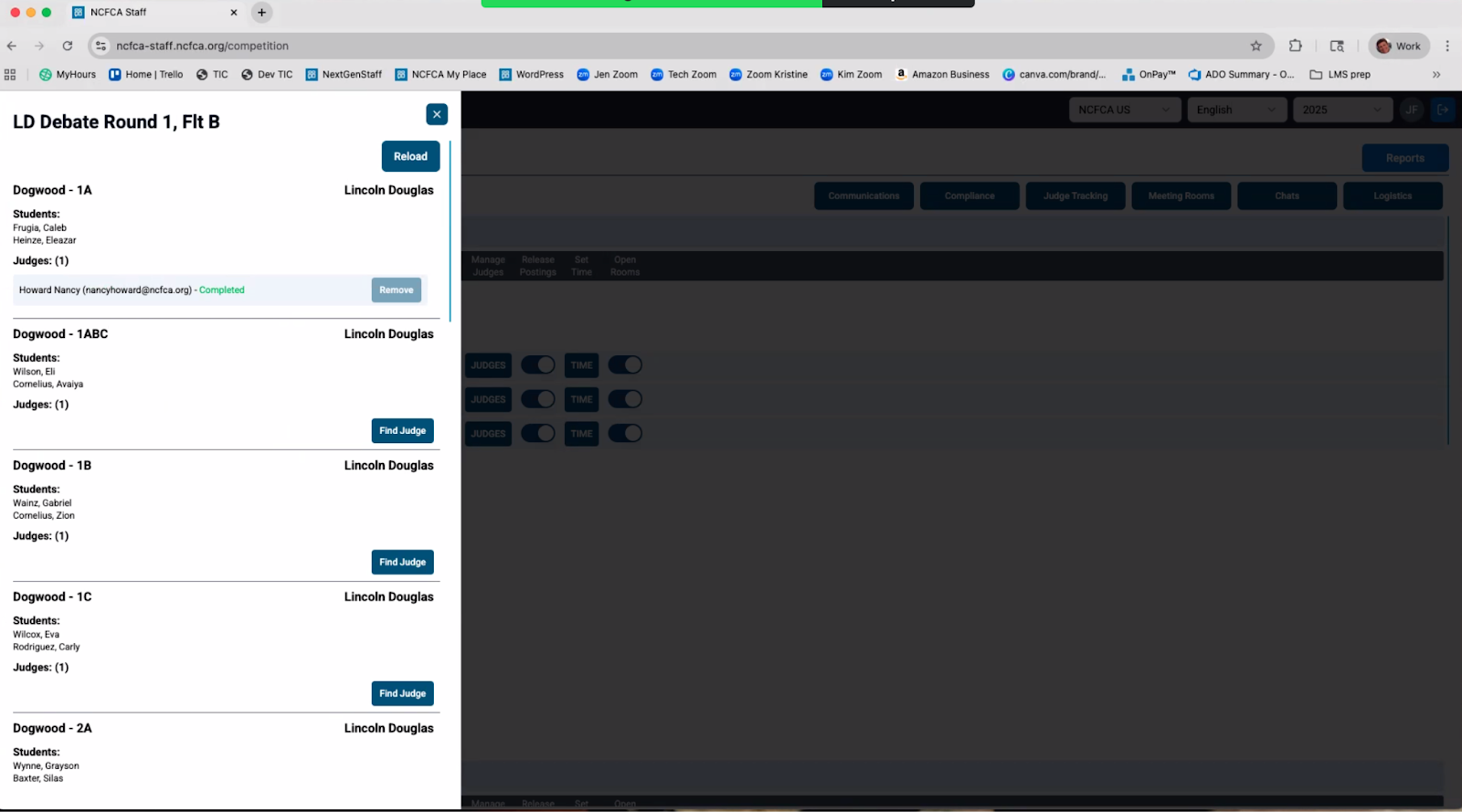
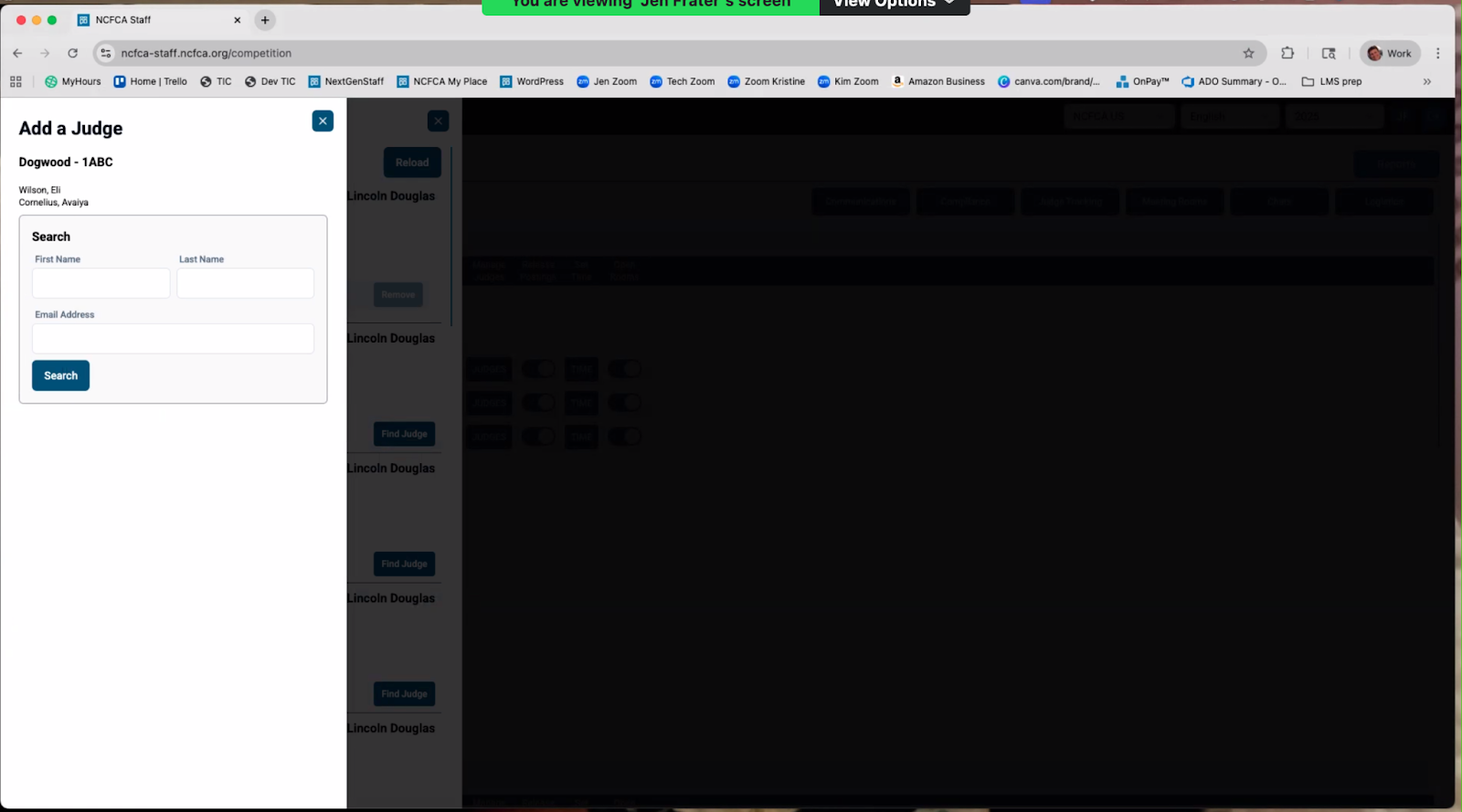
- BM removes judges when instructed by the BAL / RC and adds replacement judges.
- JS Lead may communicate necessary adjustments or manual additions to ballots to the BAL and BM will make changes as directed.
- Judge may communicate a significant conflict after selecting the ballot.
- Judge may have intended to select a different ballot.
- Judge may have entered ballot selection late and does not see ballots.
- Judge may have a tech issue that cannot be resolved.
- Any other manual adjustments are only at the direction of the RC.
- Note: When a judge is removed, it is preferred that the judge go back into ballot selection and select a new ballot rather than BA manually entering the name.
- Note: When a judge is removed from a ballot by BA, it is imperative that the judge close the ballot in order to avoid errors in the system. BA should verify this with the team member working with this judge.
- If the same judge is added back to the same room, the judge still needs to close the first ballot if they have it open.
- A new ballot will appear on their dashboard.
- If this process gets overlooked, and the judge has started working on the former ballot, they will need to copy and paste their data onto a blank document, and add it to the correct ballot. The team member working with the judge can assist.
Manually Adding a Judge
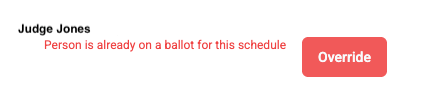
When adding a judge you may encounter an override message (see image below for an example). Please confirm with the RC before adding a judge with an override message.
Find Missing Judges
- BM may be asked by Comms to follow up on missing judges. Both BM and NM will assist with this.
Note: Online tournaments will utilize the Judge Contact Team, who will follow-up on missing judges. BM should be prepared to replace judges as needed due to technical difficulty or other. BAL will give instructions accordingly.